
Chapter 2 of 12 · Free and Premium
Write and print a cheque
Open Write cheque in the menu on the left. Everything you need is on this one page.
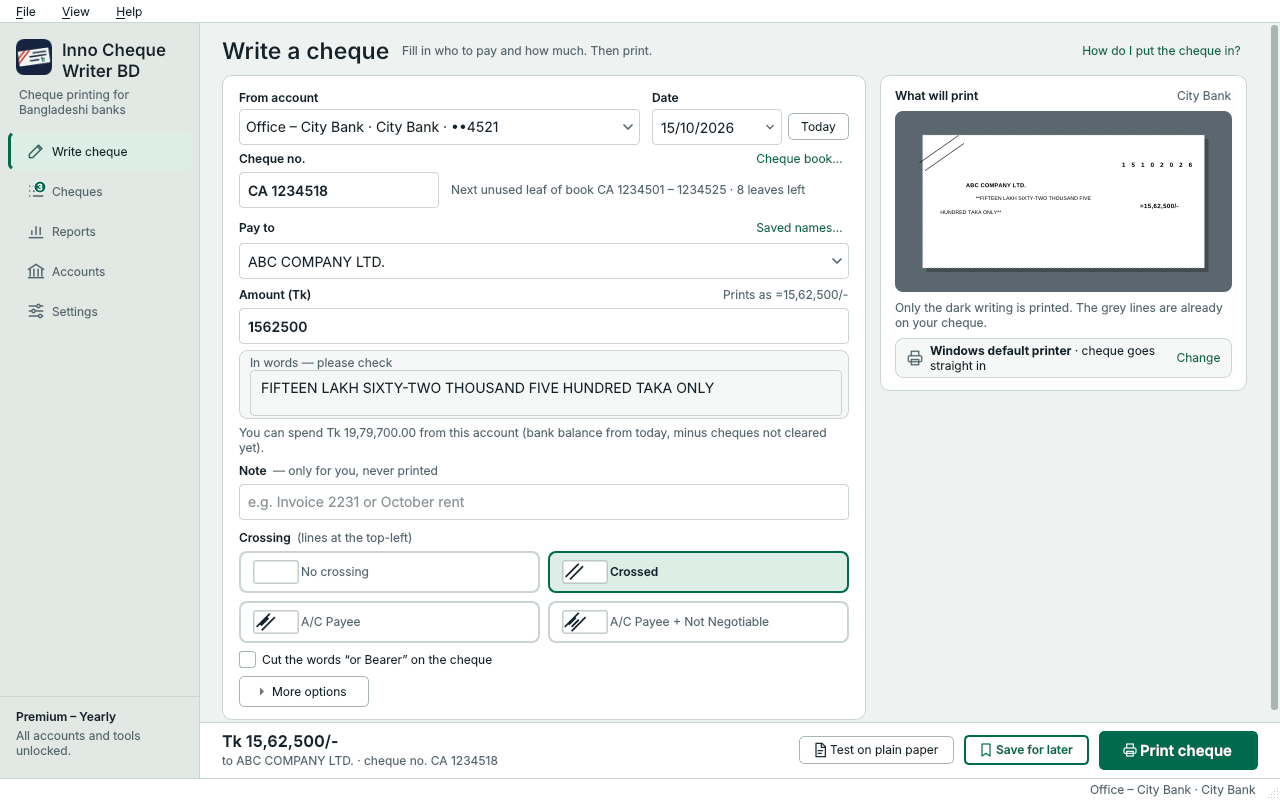
Slide the picture sideways to see all of it.
- The account the cheque is from. Its bank layout and printer come with it.
- The date printed in the boxes. Press Today or pick a day; a later date is fine.
- The leaf number, for your records (never printed). With a cheque book it is filled in for you.
- Who the cheque is for. Pick a saved name or type a new one.
- The amount in Taka. It prints with separators, e.g. =15,62,500/-.
- The amount in words is written for you. Read it once before printing.
- The lines at the top-left: none, Crossed, A/C Payee, or A/C Payee + Not Negotiable.
- What will print. Only the dark writing goes onto your cheque.
- The first time: test on plain paper and hold it over a cheque.
- Keep it in Cheques › Ready to print and print it another day.
- Print the cheque.
Good to know
- Saved names… above Pay to opens your list of saved payees. When you type a new name, tick Save this name for next time.
- The figure and the words always come from the same number, so they can't disagree. Choose lakh and crore or million in Settings › Amount in words.
- Note is only for you. It is kept with the cheque and never printed.
- More options lets you leave an item blank on the cheque, save the cheque as a PDF (this counts as one cheque), clear the form, or show guides in the preview.
- With Premium and a bank balance, the line under the words shows what you can still spend from this account (see Bank balance).
Print the cheque
Press Print cheque. A window shows which leaf to put in and everything that will be printed. Nothing is printed or counted until you press Print now.
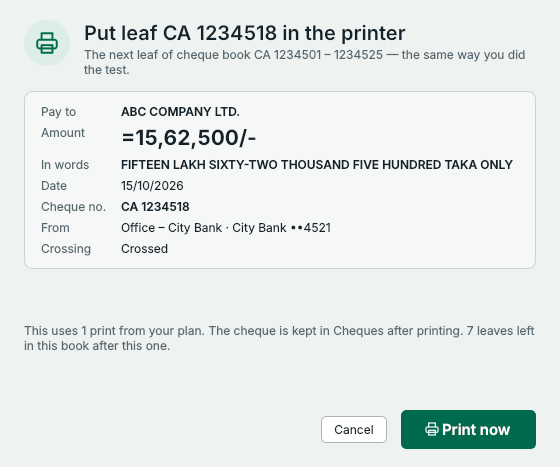
- Put the leaf in the way the window says, then press Print now.
- Cancel goes back without printing anything.
- Put one cheque leaf in the printer, the same way as your plain-paper test. Not sure? Press How do I put the cheque in? at the top of Write cheque.
- Press Print now. The app says Sent to printer: Windows can't tell whether the paper really came out right, so look at the cheque.
- Sign the cheque as usual. It is now in Cheques › Printed.
Came out wrong? Open it in Cheques › Printed, choose Mark as spoiled, then Print again – see Your cheques.
Write now, print later
Press Save for later instead of Print cheque. The cheque waits in Cheques › Ready to print until you open it and print it. Nothing is counted until it prints.
Something not clear? Questions and answers · Write to us. The pictures use made-up sample data.