
Chapter 8 of 12 · Premium
Excel import and printing many
Pay many people at once: turn a sheet of payments into cheques, check them, and print them one leaf after another. Importing never prints by itself.
1. Choose the file
In Cheques, press Import from Excel.
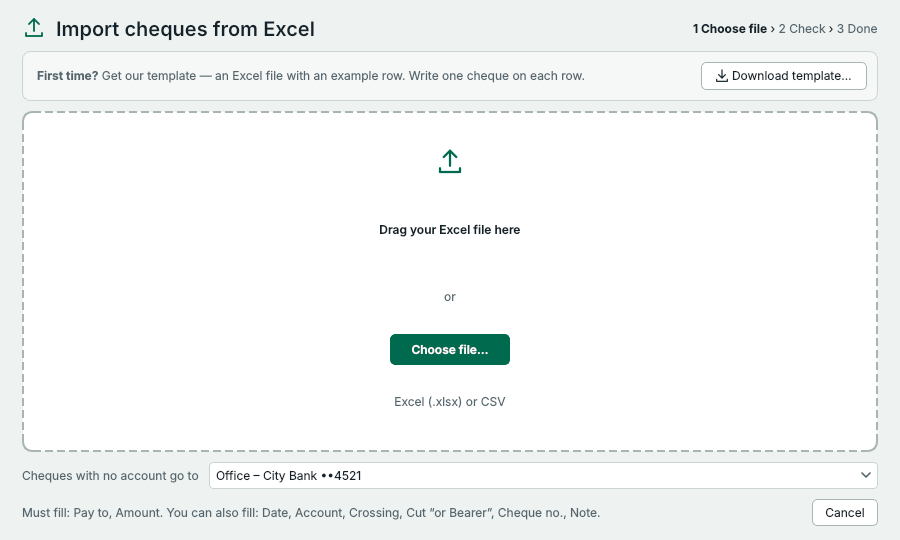
- First time? Download the template: an Excel file with the right columns.
- Drag your file here or press Choose file… (.xlsx or .csv).
- Rows that don't name an account go to this one.
The file needs a Pay to and an Amount column. Date, Account, Crossing,
Cut “or Bearer”, Cheque no. and Note are optional. Up to 1 000 rows and 5 MB, as
.xlsx or .csv.
2. Check the rows
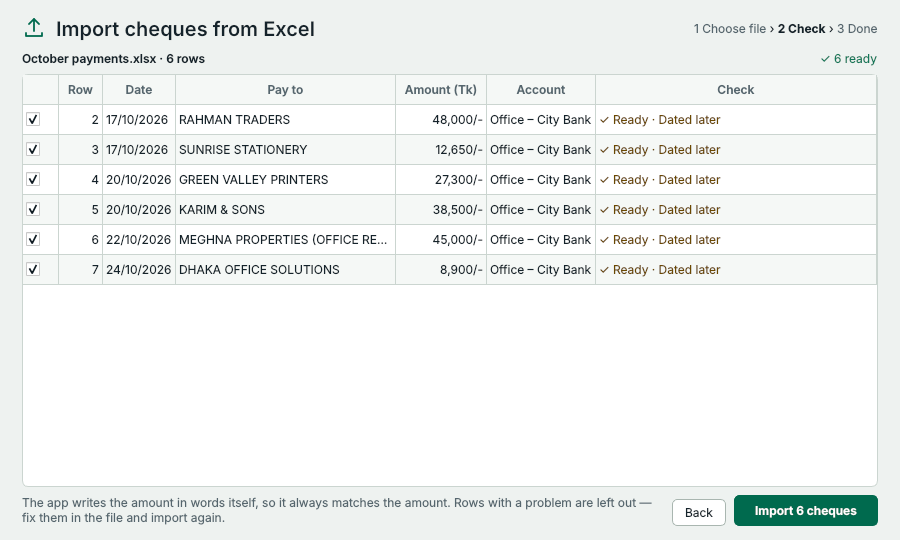
- Every row is checked first. Rows with a problem say why and are left out.
- How many rows are ready.
- Add them to Ready to print. Importing never prints.
The amount in words is written by the app, so it always matches the amount. Rows that look like a cheque you already have are pointed out. Fix any row with a problem in the file and import it again.
3. Print them
- The imported cheques are ticked in Cheques › Ready to print. Press Print N cheques.
- The app checks them first and lists anything worth a look, such as dates after today.
- Press Start printing. For each cheque the app shows which leaf to put in. You can Skip this one or Stop at any time.
- At the end, look at each cheque and tick any that came out wrong: they are marked spoiled and go back to Ready to print.
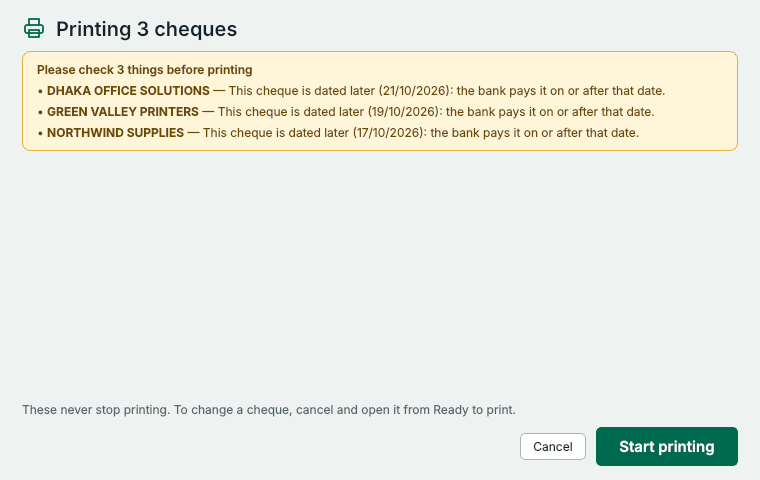
- Read the notes, then press Start printing. The app tells you which leaf to put in for each cheque.
Each cheque counts when it prints.
Something not clear? Questions and answers · Write to us. The pictures use made-up sample data.