Chapter 1 of 12 · Free and Premium
Install and set up
The app runs on Windows 10 or 11 (64-bit). The quick setup takes about three minutes, and you can skip any step and do it later.
1. Install the app
- Open the Download page and download the installer.
- Run it and follow its steps. It adds Inno Cheque Writer BD to the Start menu.
- Start the app. The Quick setup opens by itself the first time.
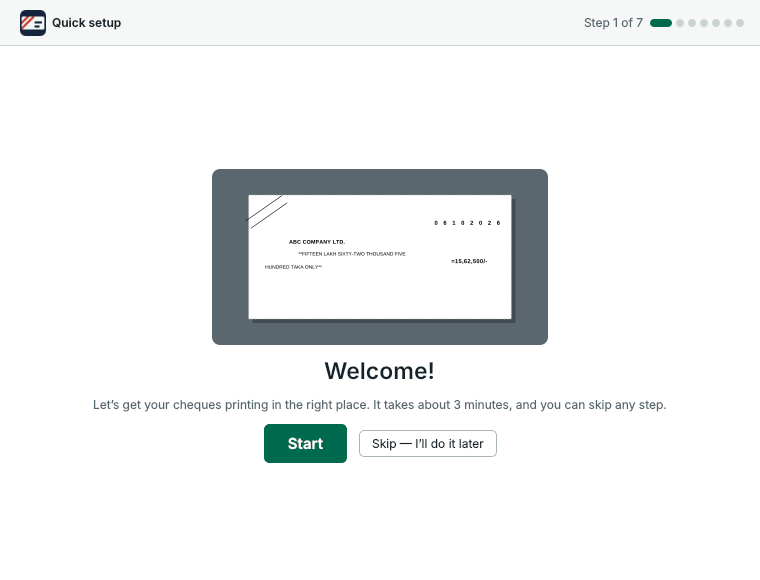
- Press Start.
- Or skip the setup and do it later.
2. Sign in
Sign in with the e-mail and password of your account on this website, or press Create a free account. You can press Later and try a test print first; printing a real cheque asks you to sign in. Your account only holds your plan and your monthly allowance – cheque details never leave your PC.
3. Choose your bank
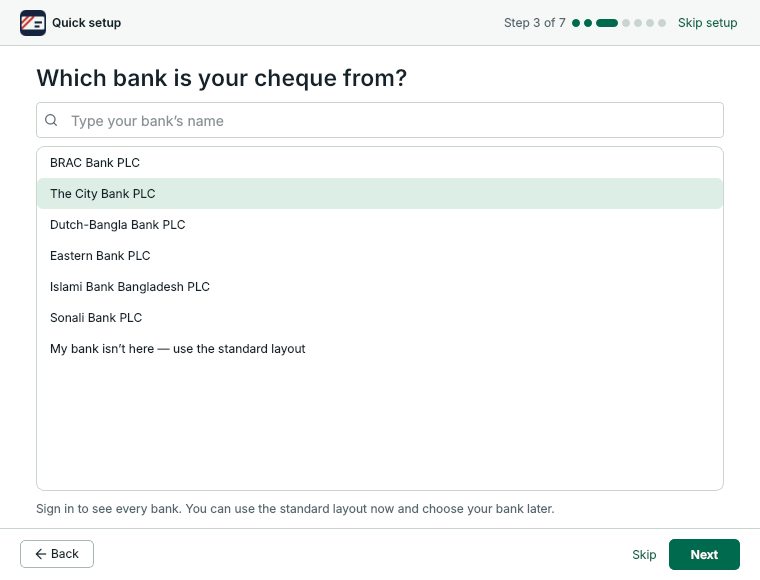
- Pick the bank your cheque leaves are from. Type part of the name to find it. Not in the list? Choose My bank isn't here: the standard layout fits most leaves.
- Press Next. Skip leaves this step for later.
Banks with an exact preset have their own layout, measured on real leaves. See the list of supported banks.
4. Name the account
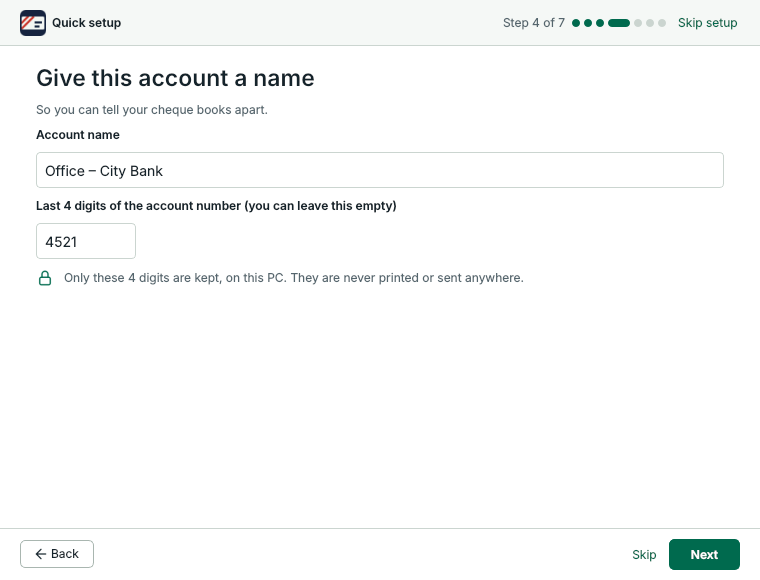
- A name you will recognise, such as Office – City Bank.
- Optional: the last 4 digits of the account number, to tell your cheque books apart. They stay on this PC and are never printed.
5. Choose the printer
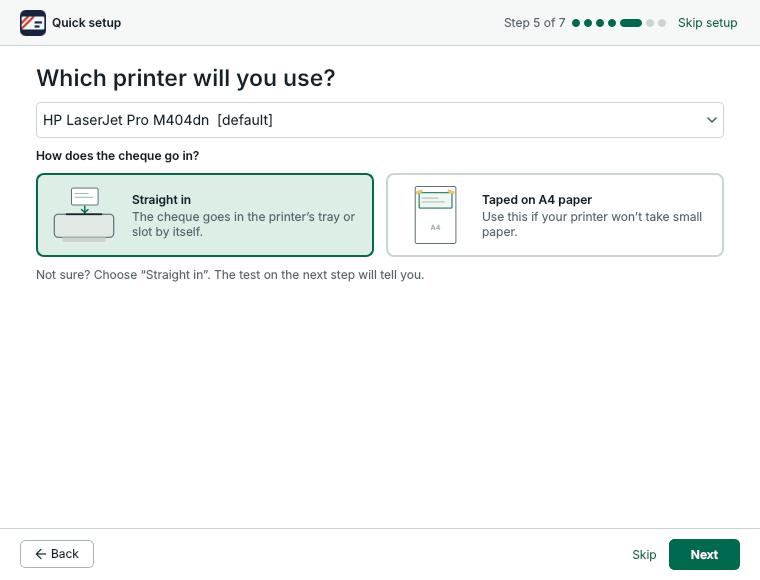
- The printer you will print cheques on.
- Straight in if the cheque goes into the printer's tray or slot by itself. Taped on A4 paper if your printer can't take small paper.
Not sure how the cheque goes in? Choose Straight in; the test on the next step will tell you.
6. Test on plain paper
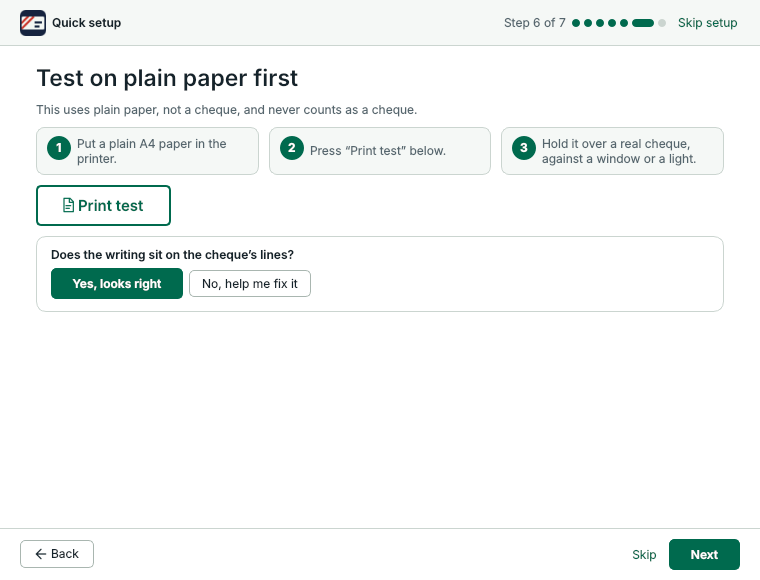
- Put plain A4 paper in the printer and press Print test.
- Hold the paper over a real cheque against a window. Fits? Press Yes, looks right.
- Not quite? Press No, help me fix it (see Fix a test print).
The test uses plain paper, not a cheque, and never counts as a cheque. When it fits, the last step offers Write my first cheque.
Changed your mind later? Run the setup again from Settings › Setup or Help › Run the setup again. Your bank, account name and printer can also be changed on the Accounts and Settings pages.
Something not clear? Questions and answers · Write to us. The pictures use made-up sample data.